Meta Muse connects to BearDrive over remote MCP. In Muse's connector settings, add a custom connector with https://app.beardrive.ai/mcp, sign in to BearDrive and tick the projects Muse may use. BearDrive then gives Muse tools to read and write those files: a shopping list, a trip plan, notes about the people in your life. The files stay after the conversation, and the same folder is open to your other agents and to anyone you share the project with.
How do you connect Meta Muse to BearDrive?
- Sign up for BearDrive and create a project, for example
familyfor what the household shares, ornotesfor what only you and your agents see. New accounts get a free personal workspace. - In Muse, open the connector settings and add a custom connector.
- Paste the BearDrive URL:
https://app.beardrive.ai/mcp - Sign in to BearDrive when asked, tick the projects Muse may use on the consent screen, and connect.
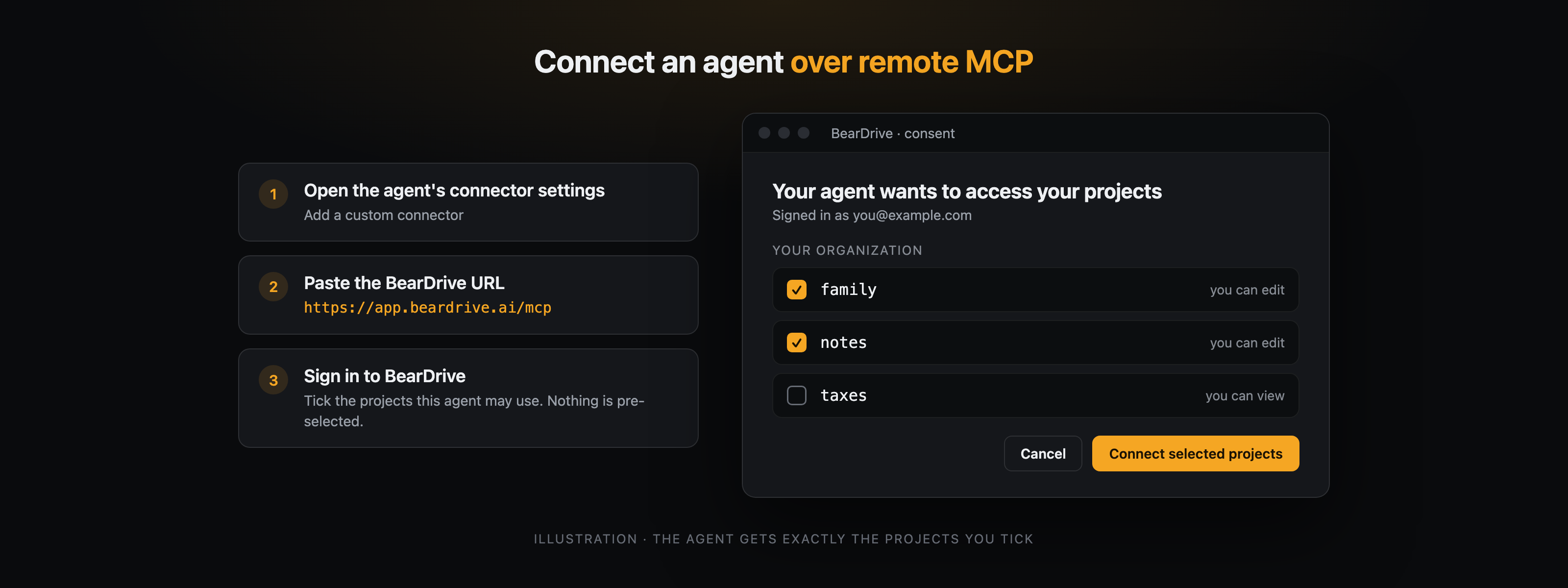
Nothing on the consent screen is pre-selected, and one connection can carry several projects. Muse gets exactly what you tick, and a project you create later needs a new connection.
What can Muse do in the folder?
Each connected project shows up as a top-level folder in one filesystem. These are the tools BearDrive's MCP server offers a connected agent:
| Tools | What they do |
|---|---|
list, read, glob, grep | Browse and search every connected project at once. |
write, edit, delete, move | Change files, in projects you can edit. |
history, restore | See who changed a file and when, and put an older version back. |
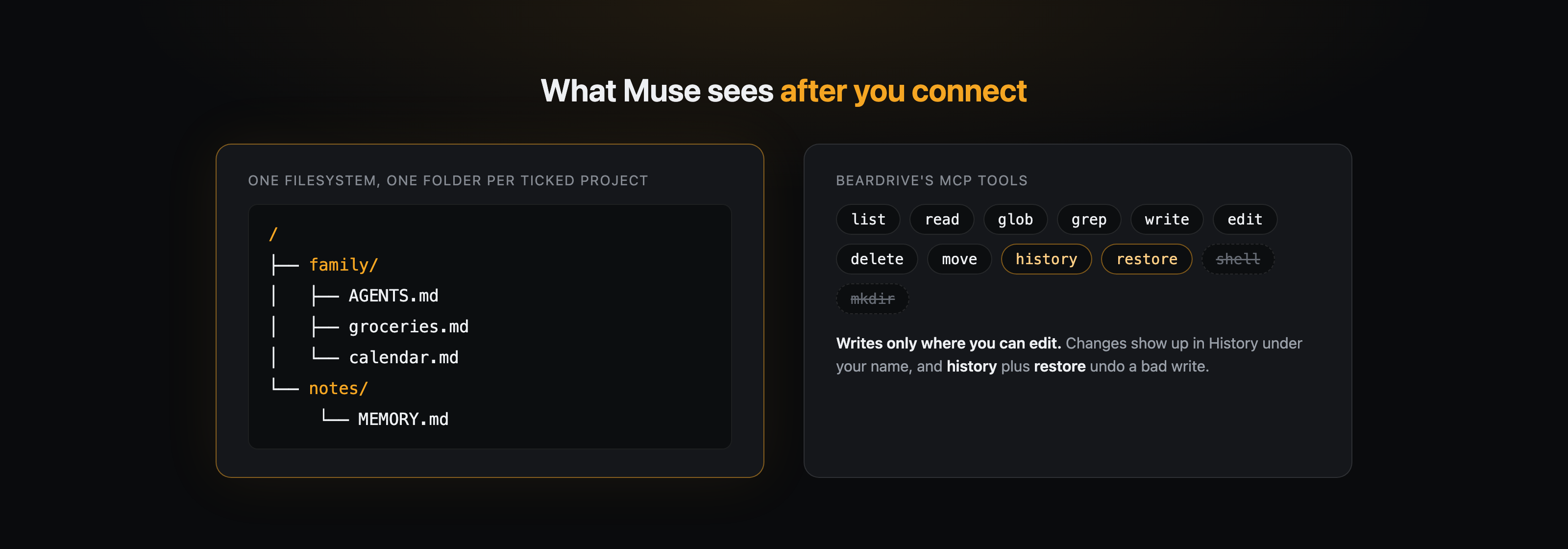
There is no shell and no mkdir; writing a file creates its folders. A write is refused if the file changed since the agent read it, so a connected agent cannot quietly overwrite your partner's edit. Changes appear in the project's History under your name, and an AGENTS.md at the project root is shown to the agent as the project's guide.
Why give Muse a shared folder?
When 1Password launched 1Password for Agents on October 22, 2026, so personal agents can sign in to sites without seeing passwords, Muse and Grok Bot were named among its launch partners (SiliconANGLE, as of October 2026). Logins are one half of what a household agent needs. The other half is what it knows: the grocery list, the school calendar, who is allergic to what.
Kept in a BearDrive project, that knowledge is plain files that any connected agent can read, not just Muse. Your partner's Grok Bot, your ChatGPT or Claude, and a coding agent like Claude Code on your laptop can all work from the same groceries.md. See your agents, one memory for every way in.
How do you keep some notes private?
Use two projects. Invite your family to your BearDrive organization (Organization settings, then New invite) and share the household project with them. Every member can write a project by default, so before you invite anyone, set your personal project's default to No access under Project settings, People. Then only you, and organization owners, can open it. BearDrive is free during beta, with unlimited projects, members and history.
If Muse or anyone else writes something wrong, open the file's History in BearDrive and restore the earlier version. Every version is kept, and a restore is a new change, so nothing is erased.
Questions
- Can Meta Muse connect to BearDrive?
- Yes. As of October 2026, Muse connects to BearDrive through a custom connector. Add one in Muse's connector settings with the URL https://app.beardrive.ai/mcp, sign in to BearDrive, and tick the projects Muse may use.
- What does Muse get from BearDrive?
- A folder of ordinary files, with BearDrive tools to read and write it: notes, lists, plans, anything in the projects you connect. The files stay in BearDrive after the conversation ends, so your next chat, your other agents and the people you share the project with all read the same version.
- Can Muse see all my BearDrive files?
- No. It sees only the projects you tick on BearDrive's consent screen, and nothing is pre-selected. In a project you can only view, it can only read. Folders you cannot see stay invisible to it, and projects you create later need a new connection.
- Can my partner's agent use the same notes?
- Yes. Invite your partner to your BearDrive organization and they can open the shared project with their own agent, whether that is Muse, Grok Bot, ChatGPT, Claude, or a coding agent like Claude Code working in a synced folder. Keep anything personal in a separate project set to No access.
- How do I disconnect Muse?
- Open the project menu at the top of the BearDrive sidebar, then Connected agents, and press Disconnect. From a terminal, bdrive mcp list and bdrive mcp revoke do the same. Access stops on the agent's next call, and a connection unused for 30 days expires on its own.